Learn how to configure multiple scoring rules in Zoho CRM – they help qualify prospects based on parameters
What are scoring rules?
Why do we need multiple scoring rules?
Lead scoring models will differ from one business to another. Buyers can benefit by scoring customers by geography and demography. For example, a chief might help by scoring customers by geography (e.g., by having authentic cuisine on the menu of his outlet in the village area) and demography (e.g., having fast food on the menu in the city outlet of his restaurant).
Another important criterion that can give companies more in-depth insight into their prospects is behavioural data. Details such as how frequently customers open your emails, when their last purchase was made, how many of your webinars they attend, how receptive they are to the phone calls, and how much they negotiate before signing a contract relating to a customer’s interests all these key factors can help business to have innovative marketing strategies.
Some companies might want their teams to work separately by using new ideas in qualifying a contact to better understand consumer behaviour.
Benefits of multiple scoring rules
Multiple scoring rules allow sales, marketing, support, and other teams to evaluate a customer individually based on parameters and better understand the customer’s overall behaviour.
A prospect can be ranked on different attributes by each team:
I. The Sales team will use lead scoring to identify interested leads
1. 6 points for opening an email2. 8 points for answering a phone call3. 10 points for Twitter mentions4. 10 points for responding to an email
II. The Marketing team will score the leads based on their interest, behaviour, and responsiveness:
1. 5 points for showing interest in a webinar2. 6 points for registering for the webinar3. 10 points for clicking on a promotion4. – 6 points for not responding to email follow-ups5. 15 points for downloading an ebook.These will help the teams evaluate the customer through different aspects of the business and understand how they are moving through the team’s process.These analytics will help CRM users identify the hot leads and pursue them quicker, align marketing strategies to better segment and target customers, increase sales by reaching out to seasonal customers at the right time.
Business scenarios
Scoring in a B2B business model
In a B2B model, multiple decision-makers at different levels in the customer organization often decide whether to buy, negotiate, or decline your offer. So there are various people involved, and the sales process is very long. So to keep track of things that help you identify the deals with the highest conversion potential and move them quickly down the funnel.Here are some examples of how prospects might be scored in B2B situations:
- 3 points for opening an email
- 5 points for registering for a webinar
- 5 points for Twitter mentions
- 5 for not responding after 5 email follow-ups
- 10 points for attending a training
Account scoring: The industry the customer organization belongs to, their purchase quantity, company location, annual turnover, and quarterly growth are important qualifying criteria in a B2B model.
For example, a textile manufacturer can channel marketing funds in the right direction by identifying the best deals using this scoring model:
- 10 points for working in the clothing industry
- 5 points for working in the shoes and accessories industry
- 10 points for being an international brand
- 8 points for making a bulk purchase of raw material every month
- 6 points for an annual turnover of more than US$100 million
Contact scoring: When multiple decision-makers are involved, who your point of contact is can become a deciding factor in winning a deal.For example, if you are directly in contact with the Vice President of Sales, you’re in a better position to close the deal quicker than if you’re just working with a Sales Manager. Your contacts can be scored based on their role in their organization:
- 10 points for Vice President
- 5 points for Manager
- 3 points for Analyst
Contact scoring: For repeat purchases, the customer is already known to the sales team, which gives them better leverage and more accurate customer profiling. This will help them to customize their marketing strategy accordingly.
- 10 points for high-value frequent purchases
- 6 points for high-value infrequent purchases
- 8 points for low-value frequent purchases
- 3 points for low-value infrequent purchases
- 8 points for B2B
- 5 points for B2C
- 9 points if the industry type is IT
- 2 points if the industry type is Furnishing
Scoring for multiple customer touchpoints
Here’s an example of how you might score each touchpoint:
- 10 points for clicking on a promotion
- 5 points for opening an email
- – 10 for not attending a webinar
- 20 points for downloading an ebook
- 15 points for attending the conference
- 10 for not responding to follow-up emails
You can configure scoring rules for Leads, Accounts, Contacts, Deals, and Custom Modules. Note that each layout can have up to five rules. Each layout has rules for sales, marketing, and support.To configure multiple scoring rules
- Go to Setup > Automation > Scoring Rule.
- Click New Scoring Rule.
- In Create Scoring Rules page, enter the Rule name.


Select the applications from the list of available integrations (eg., email insights, webinar etc.).Check the required fields, select either Add or Subtract, and enter the score points.
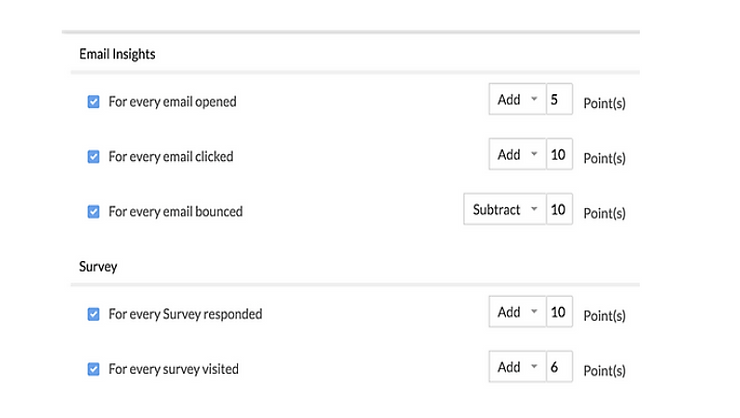
In the Update Old Record popup, choose either update old records or continue without updating.
Note that Only those records that were created or modified in the past 6 months will be updated.

Filter and search for a rule
You can also filter the rules based on their status by clicking the filter icon next to All Status.

Cloning or deleting scoring rules

Approval process
Adding an Approval Process
You can associate the approval process with a rule to define the process by specifying the rule criteria, the approval authority, and actions that need to be carried out on approval or rejection.

To add an approval process

You can also specify the rule criteria

Click the Add icon to include more users who need to approve


Associating Actions for Approval or Rejection
With each approval process, you can associate tasks such as adding a task, updating fields, sending email alerts, calling webhooks, etc., executed on approval or rejection of a record. Actions on rejection do not include all 5 of them. You cannot associate a task with rejection.

The task ideally is to check the records waiting for their approval. If a record is rejected, assigning a task is not required.
Assign Tasks
Send Alerts
While creating an approval process, under Actions on Approval/Reject, click the Send Alerts section.Already created alerts, if any, will be listed.
Call Webhooks
Call Custom Function
- While creating an approval process, under Actions on Approval/Reject, click on the Call Custom Functions section.
- Already created custom functions, if any, will be listed. You can also select one from the existing custom functions and associate it.
You can also specify the rule criteria
Click the Add icon to include more users who need to approve
You can create or associate a task to be assigned to the approver while sending for approval.
Approving or Rejecting from the Approval Tab

To approve/reject from the Approvals tab.
You can view the details of the user who owns the record that is waiting for approval, the criteria based on which the record was sent for approval and the users who need to approve.

Resubmission of records
a record can be submitted for re-approval within 60 days of rejection by clicking the Resubmit option from the records detail page. After rejection.

Reorder Approval Processes and Process Rules
Based on your requirements, you can reorder the approval processes. select the module whose process you want to reorder, click reorder process and then drag and drop the rules.