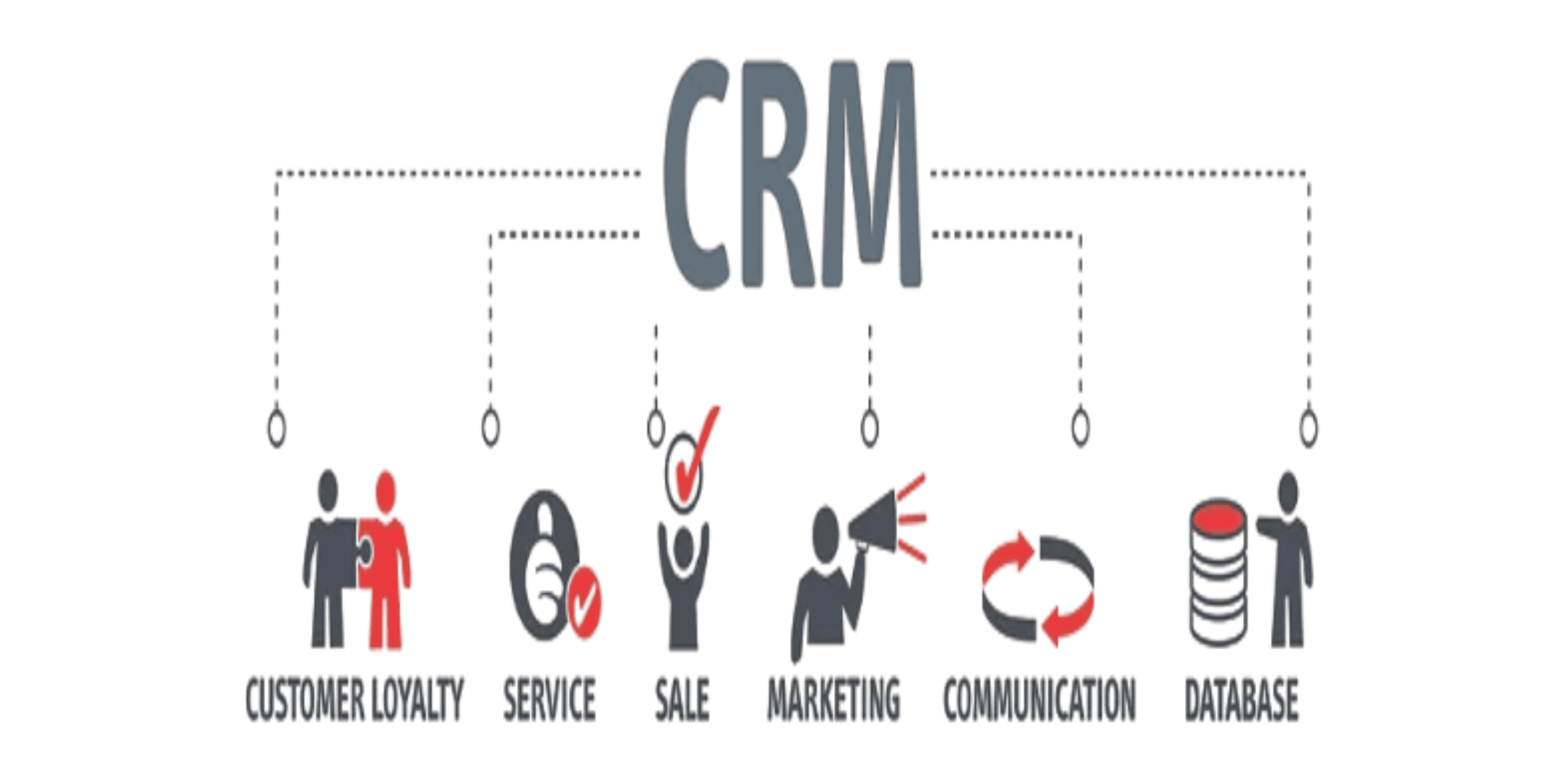
Learn about the core modules that make Zoho CRM a robust customer relationship tool for SMEs.
Customer relationship management software collects, organises, and manages customer information by using a web-based application. Sales, marketing and service automation, helps businesses save time, increase revenue, and most importantly, improve customer service.
Zoho CRM
Zoho CRM empowers a global network of over 250,000 businesses in 180 countries to convert more leads, engage with customers, and grow their revenue. While most startups and large scale organisations have started adopting Zoho CRM, it is also essential to know how to use it correctly. We at sixty-one steps help a brand embrace the full suite of Zoho products. We provide you with end-end Zoho CRM services as a certified Zoho partner. From knowing the business requirements, customising them based on your business needs to providing training services to your team with the product knowledge and best practice on using it.
Leads Module
Leads module in Zoho CRM helps you systematically manage your organisation’s sales process.
What are leads?
Tradeshows, seminars, marketing campaigns are the ways to find the leads. Anyone visiting your website can fill out a web form linked to CRM and become your lead. Every organisation has a unique process to manage the leads. But the basic process is the same.
How can you manage the leads of your organization in Zoho CRM?
- Every contact that you receive through any source will become your lead. Once the lead is generated through any source, you can get it linked into the CRM account.
- You can then assign it to a sales representative manually or automatically using the lead assignment rule.
- The sales representative can then carry forward the process by running a background check about the lead and analyzing an opportunity to be a potential customer.
- Filling the data manually under the lead forms. By mentioning all the basic required details of the lead.
- Leads can be collected through web forms. When an individual visits the website, they can enter the required data. The details collected in the web form will be associated with the CRM account.
- Leads can also be generated by importing them from a database or other CRM accounts into the Zoho CRM account.

Leads can be collected through web forms. When an individual visits the website, they can enter the required data. The details collected in the web form will be associated with the CRM account.

Converting leads

Accounts Module
Accounts mean a company with which you are doing or planning to do a business. It requires the following information: company address, number of employees, annual revenue, and a lot more.
You can associate an account with the contact within the company during the presales. After which, you can provide customer support service through Zoho CRM – case management.
Creating accounts
- By filling the details in the account detail form manually.
- You can import the data gathered through external sources and import CSV and XLS files into the Zoho CRM.
- By converting leads into accounts, you can create an account.
- By synchronizing the contacts in Microsoft outlook with the contacts in Zoho CRM.
How to create an individual account
- Fill in the details in the account creation form.
- Clone the account details if any modification or addition is to be made
Work with account detail page.

You can also customize your business card by selecting any five fields from the list. Business cards are used to give a quick preview of the details of the record like email address, phone number etc., which comes in handy when you are on a call with a customer for sharing the company’s information. You can customize it according to your convenience. You can find the option to customize the business card on the record detail page.
You can add a member account to the existing parent account. You can have a separate account with different divisions within a parent company. And have a full view of the individual accounts and the consolidated accounts within the parent account.
You can associate a parent account to the existing account or create a new account to the parent account.A Parent account can be associated with the existing account by going into the current account detail page, selecting the parent account that needs to be linked from the parent account lookup field, and then saving it.A Parent account can be associated with the new account by editing the existing account details, adding a new member account, entering the details and saving it.

Contacts Module
Like the accounts module in Zoho CRM, the contacts module has similar features. Contacts are people with whom you communicate when there is any business opportunity. Contact is the most critical information in business to consumers(B2C) for acquiring customers, and in business to business (B2B), it is a part of an organisation detail.The contact module is essential in Zoho CRM for the customers and the vendors. Contacts can be related to an account according to your business process.
The following are the steps to create a contact in the Zoho CRM.
- You can fill in the details manually.
- You can create web forms associated with the contact module in the Zoho CRM. When any visitor visits the website, they can fill out the web form, and the details filled in the web form will get captured into the contact module of Zoho CRM.
- You can import data through external sources into the Zoho CRM.
- By converting leads into contact.
- By synchronising the contacts in Microsoft outlook with the contacts in Zoho CRM.

How to create contact individually
- Fill the details in the contact creation form
- Clone the contact in the existing contact details if any modifications are made.
Associate contacts with other records.
Deals Module
The Deals module in Zoho CRM is the most important as it helps you generate the actual revenue of your organisation. In a B2B organisation, a deal undergoes a complete sales cycle, starting from identifying one prospect of business to ending with the prospect either is won or lost.
You can create a deal using the following options as
- Entering the data manually in the deals detail form
- Import deals through external sources into the Zoho CRM.
- Converting leads to deals.
What is stage probability mapping?
A deal moving through various stages in a sales cycle is defined by stage probability mapping. The four essential factors are

Deal stage –
The Deal stage is used to define the sales process of your business. You can customise stages according to your business process. Qualification needs analysis, negotiation, closed-won and closed lost are the deal stages.
Probability –
The probability value is associated with each stage to determine the likelihood of closing a deal successfully.
Deal category –
- Open – deals that are still in the sales cycle.
- Closed won – deals that are won and are out of the sales cycle.
- Closed lost – deals that are lost and is not a part of the sales cycle.
Forecast category –
This category helps you calculate the forecast target of an organisation based on the deal stage in the sales cycle. The forecasting category is a pipeline, closed and omitted.
- Pipeline – deals that are yet to be finalised.
- Closed won – deals that are one and will be taken as closed deals.
- Omitted – deals that are lost.
The Forecast category is automatically mapped with the deal category to estimate. Open, closed-won and closed lost are mapped with the pipeline, closed and omitted.
Associate competitors with deals
If you want to keep track of your competitors, Zoho CRM helps you. Through this, you will get to know your strengths and weaknesses in advance to prepare your offering in a better way.
Set up a big deal alert
You can notify your co-works about a big deal alert by sending them an email notification either to all or only the selected ones.

Activities Module

Creating tasks:
Set repeat type for a task:
Set reminders for tasks:
You can set reminders for your tasks to get notified before the task reaches the due date.
If you want multiple records to perform any specific task, you can create them in bulk.


An activity that has to occur at a given time and place is a meeting. In Zoho CRM, you can create a meeting, set reminders, create a recurring meeting in bulk and invite the attendees.
You can assign colours to the list values for ease of identification. It will be displayed in the places like calendars, related lists of records, activities modules, homepage etc. In Zoho CRM, you can colour code a max of 20 values in a field.
If your business requires you to travel often, then Zoho CRM has a feature where you can check in from any location from your mobile Zoho CRM app. It is easy to manage work-related visits. It is always associated with a meeting. When a sales rep visits a client’s office, they can check in through the mobile Zoho CRM app. Through this, the sales manager can keep track of client meetings. Note that you can do the check-in only through the mobile and not through the web version.

In Zoho CRM, you can track all the inbound and outbound calls. Zoho CRM provides you with a platform to store and follow every detail related to the call.
